
Dashboard Workspace
Refine layout, formatting, exports, and sharing in one workspace.
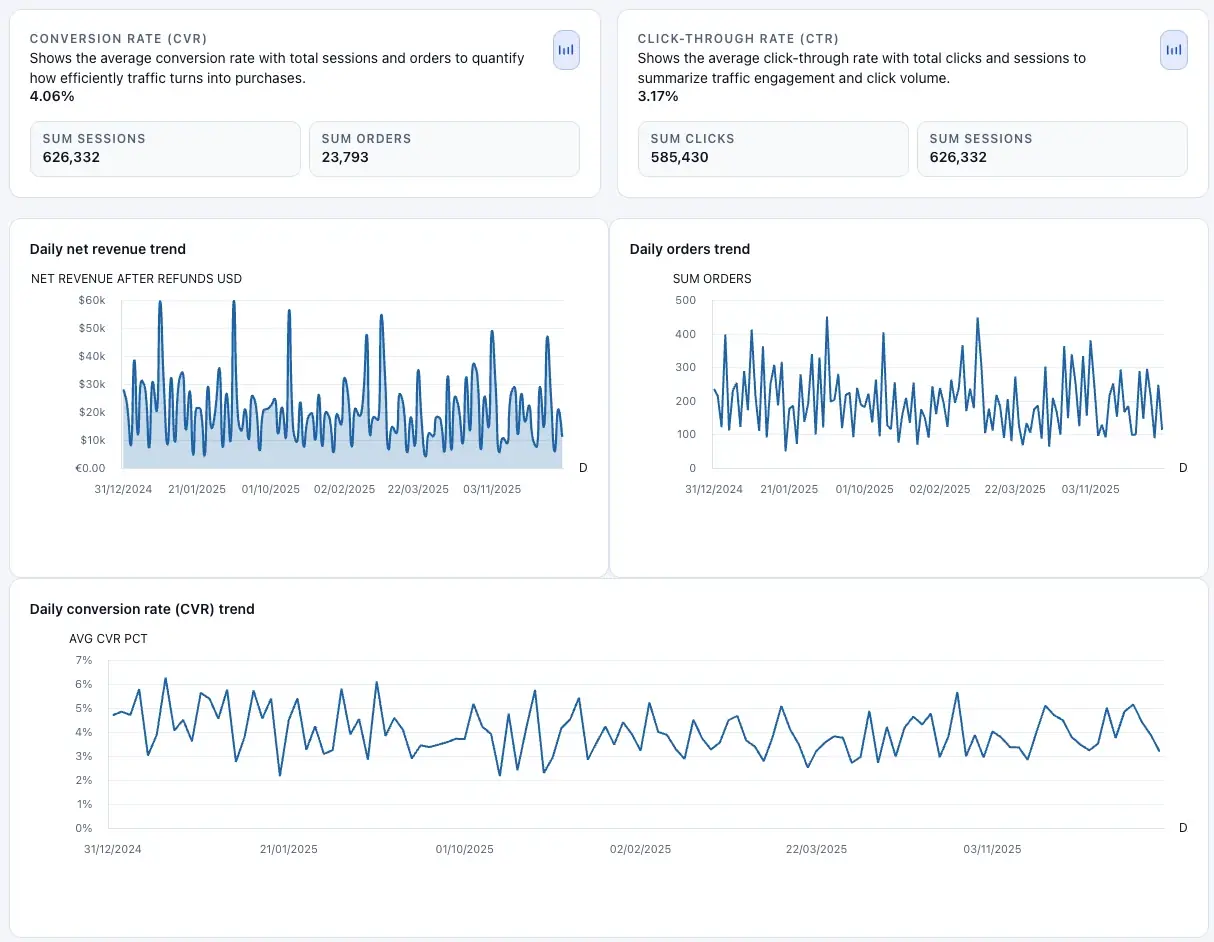
Workspace controls support review, iteration, and distribution.
Filter and inspect quickly
Use text, select, numeric range, and date-range filters to narrow the dataset without leaving the page.
If a widget shows no data, reset filters incrementally to identify the constraint causing exclusion.
Edit layout and widget visibility
Enable Edit layout to drag, resize, and reorder tiles directly on canvas.
Hide or delete widgets you do not need. Hidden widgets can be restored from chart management controls.
Apply number, currency, and date formatting
Dashboard Settings lets you set thousand separators, decimal style, currency symbol, and regional display behavior.
Choose boxed or full-width layout based on presentation context.
Export for stakeholder review
Use Export PDF for static executive reporting and HTML export from Builder result state for portable sharing.
Exports represent the current dashboard state, so apply filters and layout adjustments before generating files.
Manage dashboard inventory and sharing
Dashboards list supports status tracking, title updates, open in new tab, copy ID, and deletion.
For collaboration, invite viewers by email and revoke access when needed.
Upload new data to existing dashboards
Use Replace mode to rebuild from only the new file.
Use Merge mode to append new rows while retaining historical records.
Related guides
- Chat & Remix — add widgets and create variants without modifying the original.
- Connectors & Refresh — schedules and notifications for production dashboards.
- FAQ — credits, privacy planning, and sharing answers.