
Chat With Your Data and Remix Dashboards
Use chat for fast analysis and create dashboard variants without touching the original.
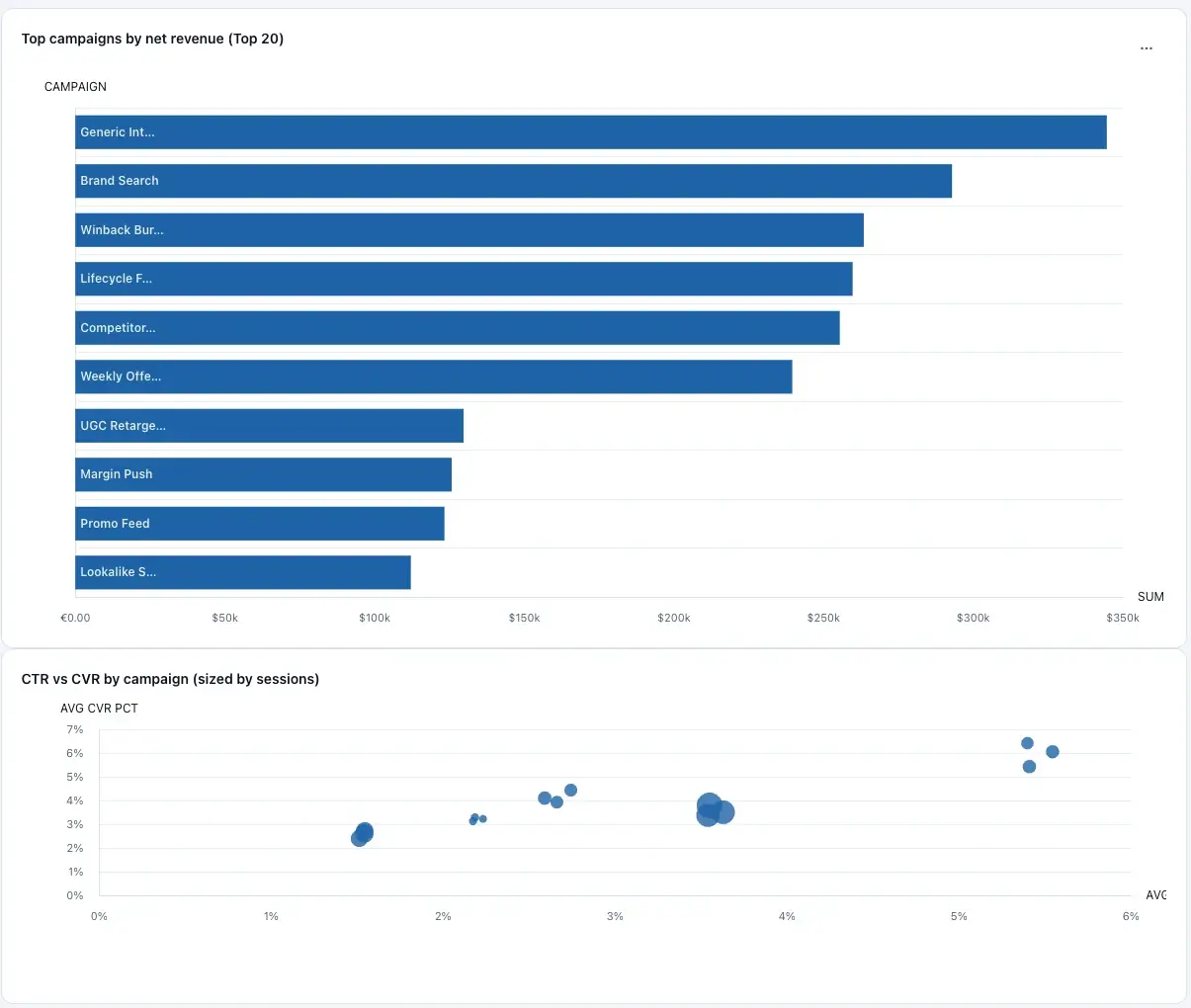
Chat and remix workflows focus on fast insight iteration.
Open the chat side panel
Inside a dashboard, click Chat to open the side panel. The panel shows connection state, session history, and starter prompts.
Use New chat to reset context or Copy transcript to share findings with teammates.
Control chat context with current filters
Enable Using current dashboard filters to keep responses scoped to your active date/category/range filters.
Context chips summarize active constraints so prompts stay unambiguous.
Interpret tool events in chat output
Tool cards show query state and duration for each data action.
If a tool call fails, adjust the question scope or filter context and rerun.
- Running state: query is in progress.
- Completed state: query finished and response streamed.
- Duration tag: execution time for the data call.
Add chat-generated widgets to dashboards
Assistant responses can include chart or table widget suggestions.
Click Add to dashboard to persist a suggestion directly into the current dashboard spec.
Create a dashboard from selected charts
Open Dashboard Settings and choose Create From Charts.
Select the widgets you want to keep, then create a new dashboard variant.
Create a dashboard from prompt instructions
In Dashboard Settings, enter prompt instructions such as “focus on weekly efficiency and channel profitability.”
Create From Prompt generates a new dashboard ID and leaves your original dashboard unchanged.
Related guides
- Dashboard Workspace — refine layout and share with view-only access.
- Getting Started — build stages, prompts, and statuses.
- Troubleshooting — fix chat and workflow issues quickly.